LaTeX documents
TypstDrive is built for Typst, but it also writes and compiles real LaTeX. Use it when you already know LaTeX, when someone sends you a .tex file, or for a paper that has to follow a LaTeX template.
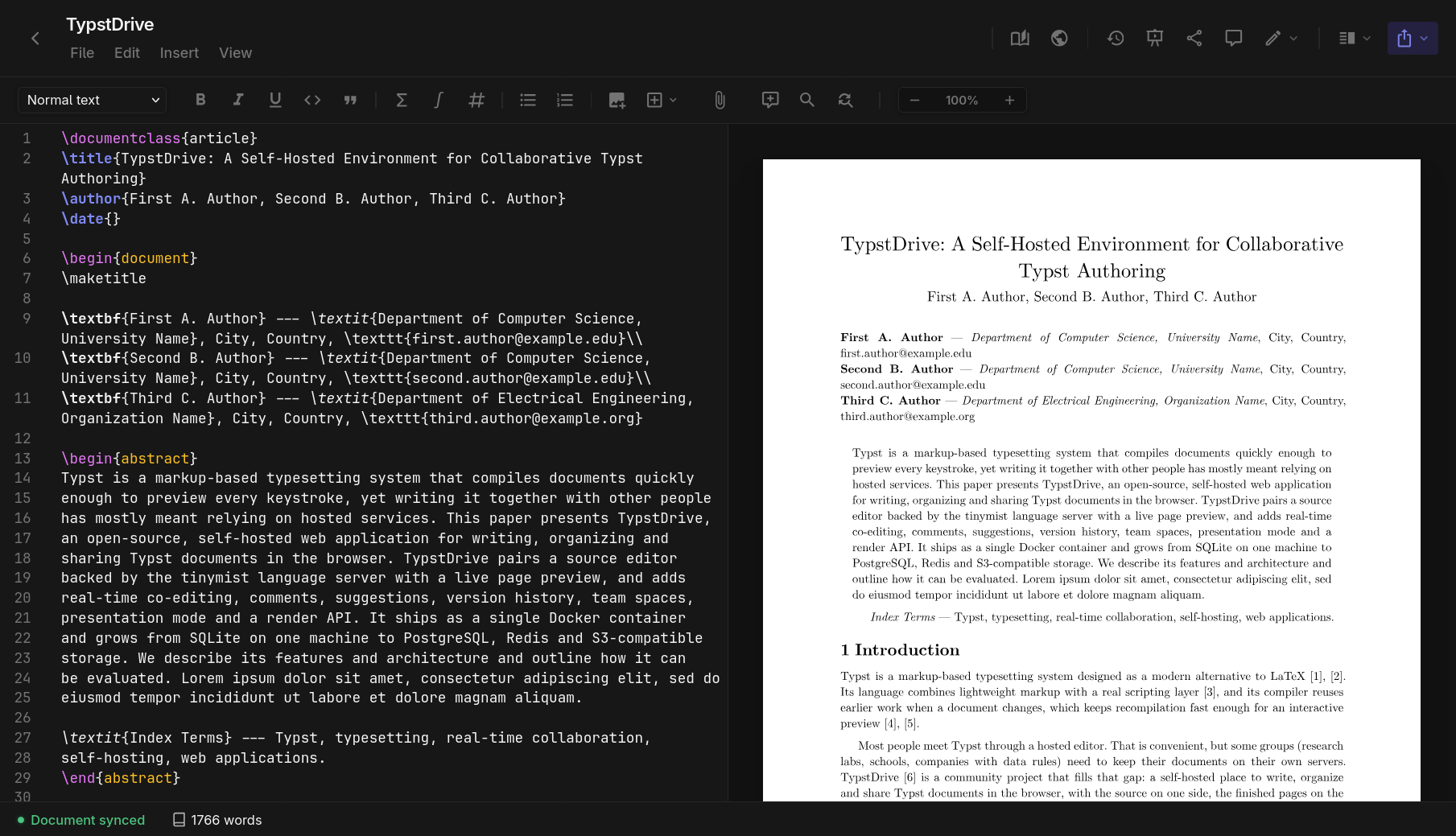
LaTeX is compiled on the server by Tectonic, a complete TeX engine based on XeTeX. It downloads the LaTeX packages a document uses the first time it needs them, so most packages from TeX Live work without any setup.
New to LaTeX? The LaTeX guides teach it from the beginning.
Note
Administrators can turn LaTeX off. Then the LaTeX choices are hidden and existing LaTeX documents do not compile.
Creating a LaTeX document
Choose New document in the drive and pick LaTeX under Language. The arrow next to New document also has a LaTeX document shortcut.
A new LaTeX document starts with a small article:
\documentclass{article}
\title{New Document}
\author{}

\begin{document}
\maketitle

\section{Introduction}
Start writing here.

\end{document}
Uploading a .tex file with Upload also creates a LaTeX document. New → Import is different: it converts the .tex file into a Typst document with Pandoc.
LaTeX documents show a LaTeX badge on their card in the drive.
Creating a LaTeX project
Choose New → Project and pick LaTeX under Language. The project starts with a single main.tex file, which is its entry point. See Projects.
Use a project for anything with several files: chapters pulled in with \input or \include, a .bib bibliography, images, or your own .sty and .cls files. Paths are relative to the folder of the entry point, just like on your own computer.
LaTeX projects cannot be published as packages.
What works
- Packages with
\usepackage, such asamsmath,geometry,hyperref,graphicx,booktabs,siunitxand TikZ. They are downloaded the first time a document uses them. - Document classes such as
article,report,book,beamerand journal classes, or your own.clsfile in a project. - Bibliographies with BibTeX and
natbib, or BibLaTeX withbackend=bibtex. - Cross-references, tables of contents and citations. LaTeX is run as many times as needed for them to settle.
- Images in the project or in your drive with
\includegraphics. - Your own fonts with
fontspec: upload the font file and use its file name, for example\setmainfont{MyFont-Regular.otf}.
What does not work
- Shell escape is always off, so
minted,\write18and packages that run outside programs do not work. Uselistingsinstead ofminted. - Biber is not available. Use BibLaTeX with
backend=bibtex, or BibTeX. - pdfLaTeX-only packages may not work, because the engine is XeTeX. Most documents work as they are;
inputencandfontencare simply not needed. - Files outside the document or project, such as system fonts or files elsewhere on the server, cannot be read.
The first compile
The very first LaTeX compile on a server takes longer, up to a minute, while Tectonic downloads the core LaTeX files. A document that uses a package nobody has used before also waits for that package to download. After that, compiles take about a second.
The editor
LaTeX documents use a LaTeX editor instead of the Typst one:
- Colors for LaTeX commands, environments and math.
- Suggestions for common commands and environments as you type.
- Typing
\begin{itemize}adds the matching\end{itemize}. - Hover over a command to see what it does.
- Warnings for common mistakes, such as an
\endwithout a\begin. - Ctrl+/ comments lines out with
%.
The Typst language server is not used for LaTeX, so go-to-definition and renaming are not available.
The LaTeX toolbar
The toolbar above the text inserts LaTeX instead of Typst:
- Section picker: Normal text, Section, Subsection, Subsubsection, Paragraph and Subparagraph.
- Bold, italic, underline, monospace and quote.
- Math inline (
$...$), on its own line (\[...\]) or as a numberedequation. - Bullet (
itemize) and numbered (enumerate) lists. Selected lines each become an\item. - Upload image adds the picture to the document's files and inserts a
figurethat uses it. - Insert: figure, table, link, footnote, label, reference, citation, verbatim block, table of contents and page break.
- Document files, Comment, Find, Search and replace and Zoom work as they do for Typst. Picking a file inserts the matching LaTeX:
\includegraphicsfor images,\setmainfontfor fonts,\inputfor.texfiles and\bibliographyfor.bibfiles.
When the toolbar, the / menu or the image picker inserts a command that needs a package, the package is added to the preamble for you: graphicx for images, hyperref for links, fontspec for fonts and amsmath for \text and \eqref. This only happens in the file with \documentclass, so in a project, add packages for other files to the main file yourself.
The font picker and Page settings are hidden, because they write Typst settings. Set fonts and page layout in the preamble instead, for example with fontspec and geometry.
Keyboard shortcuts insert LaTeX too: Ctrl+B for \textbf, Ctrl+I for \textit, Ctrl+E for \texttt and Ctrl+M for inline math.
Errors
When LaTeX stops with an error, the error bar under the toolbar shows the message with its line number, and the line is underlined in the editor. In a project, the error is underlined when you open the file it is in. Errors inside a package show the message without a line.
A document that runs for too long, for example because of a macro that calls itself forever, is stopped after 90 seconds on a default server.
Exporting
PDF downloads the PDF exactly as LaTeX made it. PNG and SVG work as usual. .tex source downloads your LaTeX file. HTML export and the Pandoc conversions in the File menu are not available for LaTeX documents.
Downloading a folder as a ZIP saves LaTeX documents as .tex files.