Your settings
Open Settings from the account menu in the top right.
Account
- Profile picture: hover over it and choose an image, then drag and zoom to crop it.
- Username, email and password. Your administrator may lock the username or email.
- If email is set up, a badge shows whether your address is confirmed, with a button to send the confirmation again.
- Accounts made with single sign-on have no password until you choose Set a password.
Changing your password signs you out of your other browsers.
Security
- Active sessions lists every browser signed in to your account. Sign out of one, or Sign out everywhere else.
- Connected accounts lets you link or unlink Google, GitHub or your organization's sign-in. You always need at least one way left to sign in.
Appearance
Choose a color theme (Cerberus, Catppuccin or Arch Linux) and switch between light and dark. New browsers start with Cerberus in dark mode. For easier reading, change the text size or turn on high contrast.
These choices are saved in your browser, so each computer can look different.
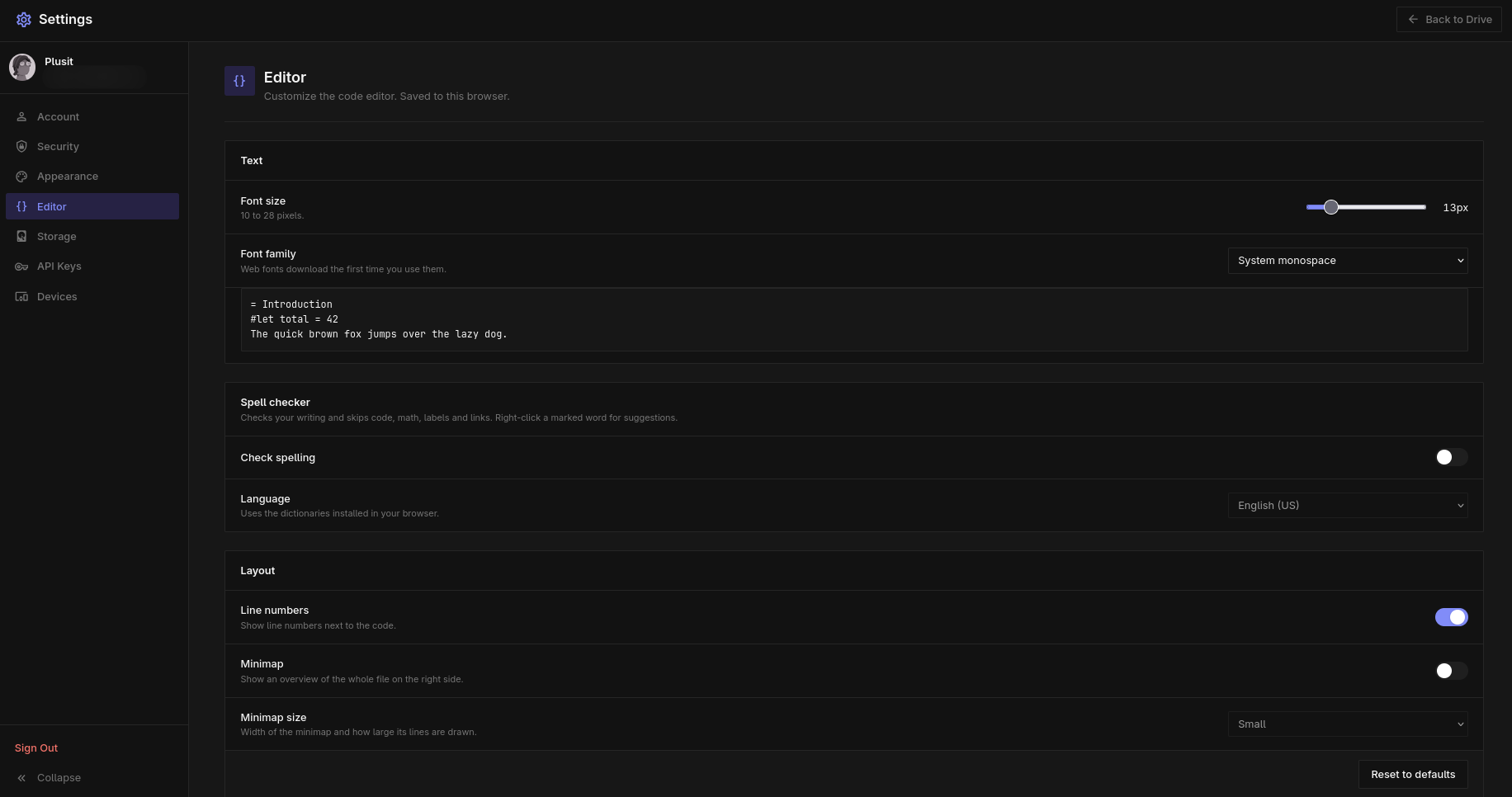
Editor
Also saved in your browser:
- Font and font size for the text you type, with a preview.
- Spell checker and its language.
- Line numbers, and a minimap that shows the whole file on the right, in three sizes.
Keybinds
Change the editor's keyboard shortcuts.
- Click the shortcut you want to change.
- Press the new key combination. Shortcuts need Ctrl, Alt or Cmd, or a function key.
- Press Esc to cancel, or Backspace to remove the shortcut.
Two actions sharing the same shortcut are marked in red. The restore button next to a shortcut puts back its default, and Reset keybinds restores them all. New shortcuts apply the next time you open a document.
Storage
How much space your documents and files use, and your limit if there is one.
API keys
Keys let your own programs and scripts turn Typst into PDFs and images through TypstDrive. Create, renew and delete keys here, and watch how much they are used. A new key is only shown once, so copy it straight away. See the API overview.
Devices
The Typst Desktop apps signed in to your account, and whether they are online right now. Revoke signs a device out immediately.