Writing in the editor
The editor has two halves: the text you write on the left and a live preview of the pages on the right.
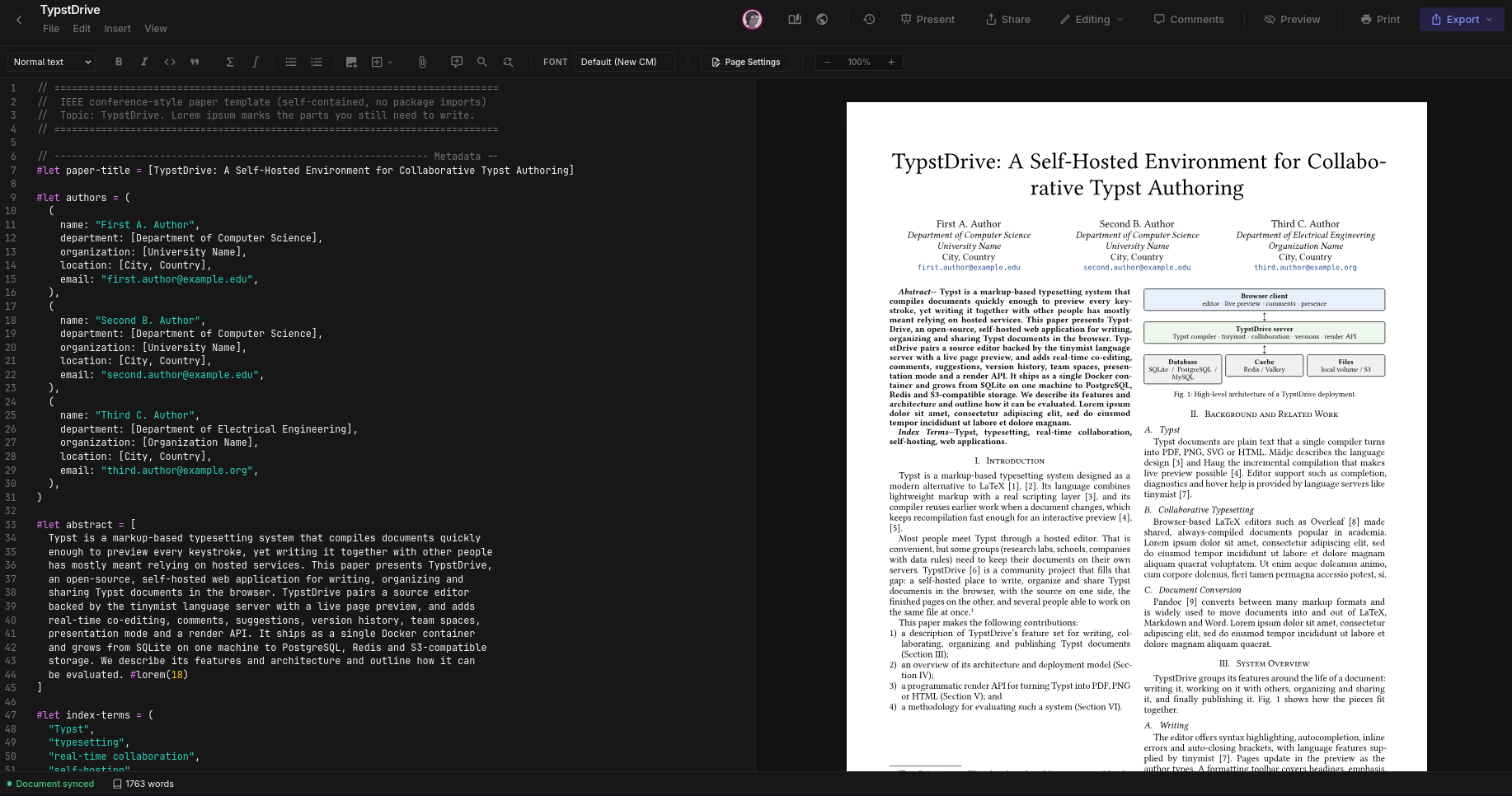
Writing
- Typst code is colored so it is easy to read, and suggestions pop up as you type.
- Typing an opening bracket or quote adds the closing one for you. With text selected, typing
*,_,`,$,(and similar wraps the selection instead of replacing it. - Mistakes are underlined, and the error bar under the toolbar tells you what went wrong and on which line.
- Smart features such as jumping to where something is defined, renaming and formatting are available to owners and editors.
The toolbar
The formatting toolbar sits above the text:
- Heading sizes, bold, italic, code and quote.
- Math inline or on its own line.
- Bullet and numbered lists.
- Upload an image or font, and Insert (see below).
- Document files, the paperclip, lists the files this document uses.
- Comment, Find and Search and replace.
- Font picker and Page settings for paper size, margins, page numbers and more.
- Zoom for the preview.
Hover over any button to see what it does and its keyboard shortcut.
Insert
The Insert button adds things at the cursor:
| Item | What it does |
|---|---|
| Image | Pick one of the images in your drive. |
| Table | Choose how many rows and columns, with an optional header row. |
| Document | Include another document you own or that is shared with you. |
| Symbol | Search math and text symbols by name, such as "arrow" or "alpha". |
| Emoji | Search emoji by name. |
Find and replace
Press Ctrl+F to search the document, or Ctrl+H to search and replace. Both are also in the Edit menu.
Spell checking
Turn on spell checking in your settings. It only checks your writing and skips code, math, labels and links. Right-click a marked word for suggestions.
Keyboard shortcuts
These are the shortcuts out of the box. On a Mac, use Cmd instead of Ctrl. You can change most of them in your settings.
| Shortcut | Action |
|---|---|
| Ctrl+S | Save a version |
| Ctrl+B | Bold |
| Ctrl+I | Italic |
| Ctrl+E | Inline code |
| Ctrl+M | Inline math |
| Ctrl+/ | Turn the selected lines into comments, or back |
| Ctrl+F | Find |
| Ctrl+H | Find and replace |
| Ctrl+Alt+M | Comment on the selected text |
| Ctrl+Z and Ctrl+Y | Undo and redo |
Saving
Everything you type is saved automatically every few seconds. Versions, which are snapshots you can go back to, are saved when people leave the document or when you press Ctrl+S. See Version history.