Sign-in and single sign-on
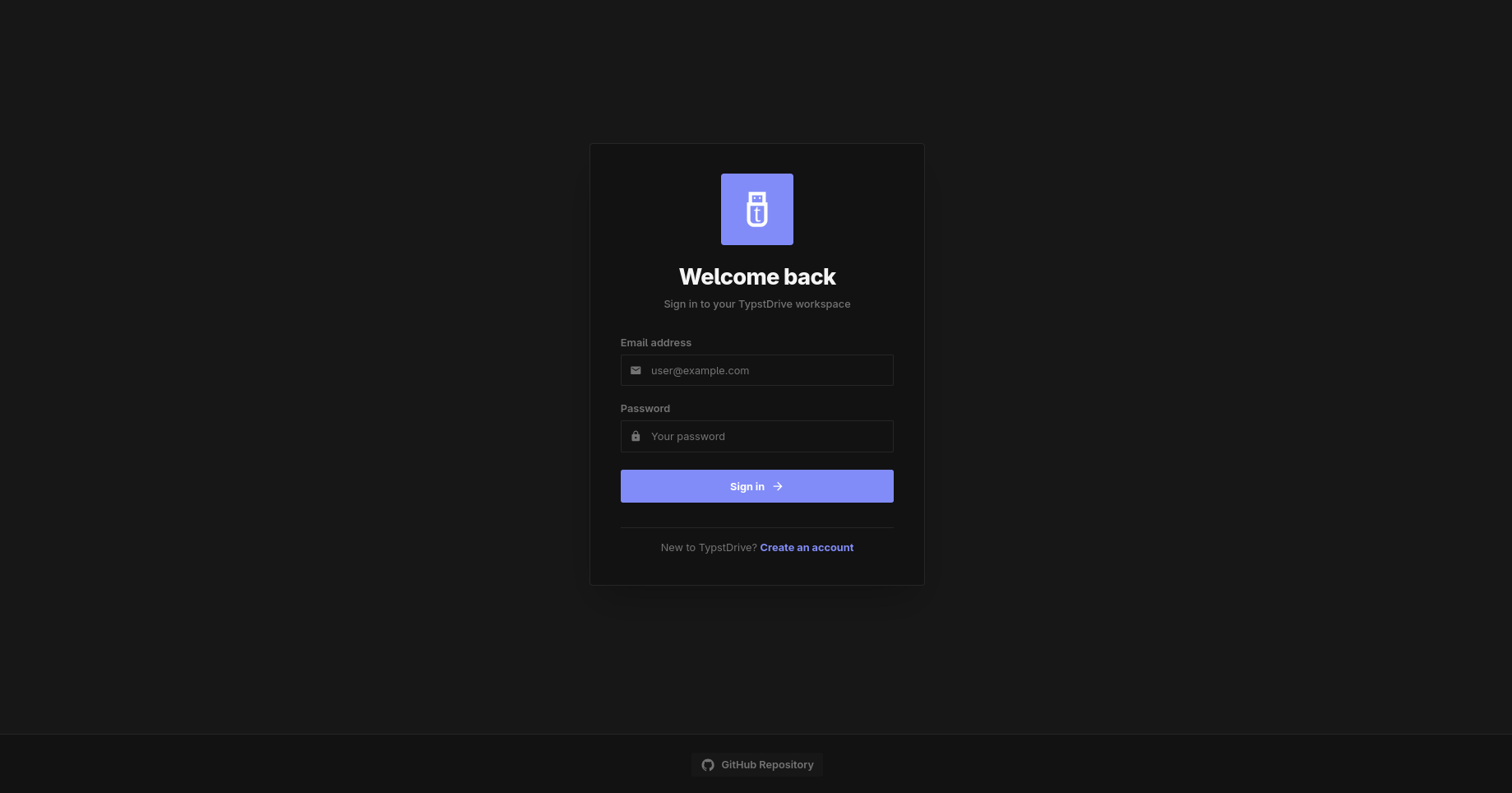
Out of the box, people sign in with a username or email and a password. You can add:
- Email codes: a one-time code sent by email instead of a password. Needs email.
- Google and GitHub sign-in.
- Single sign-on with your organization's login, such as Keycloak, Authentik, Authelia, Microsoft Entra or any other OpenID Connect provider.
Providers are set up with a few lines in docker-compose.yml. Turn them on and off later in Site Settings → Authentication. See Sign-in and security.
Before you start
Set PUBLIC_URL to the exact address people use, such as https://typst.example.com. Providers send people back to this address after they sign in.
Each provider asks for a redirect URL (also called a callback URL). For TypstDrive it is:
Replace <provider> with google, github or the name you give your own provider. Site Settings → Authentication shows the exact URL for each provider, ready to copy.
Google
- In the Google Cloud console, create an OAuth client ID of type Web application.
- Add the redirect URL ending in
/api/auth/sso/google/callback. -
Add the ID and secret:
To only accept accounts from your Google Workspace, add GOOGLE_HOSTED_DOMAIN=example.com.
GitHub
- On GitHub, open Settings → Developer settings → OAuth Apps and create an app.
- Use the redirect URL ending in
/api/auth/sso/github/callback. -
Add the ID and secret:
Your own provider (OpenID Connect)
Give your provider a short name, such as company. Create a client for TypstDrive in your provider with the redirect URL ending in /api/auth/sso/company/callback, then add:
environment:
  - OIDC_PROVIDERS=company
  - OIDC_COMPANY_NAME=Company login
  - OIDC_COMPANY_ISSUER=https://login.example.com/realms/main
  - OIDC_COMPANY_CLIENT_ID=typstdrive
  - OIDC_COMPANY_CLIENT_SECRET=...
OIDC_COMPANY_NAME is the text on the sign-in button. To add several providers, separate their names with commas, such as OIDC_PROVIDERS=company,school, and add a set of lines for each.
Examples for common providers
Keycloak: create an OpenID Connect client with Client authentication turned on. The issuer looks like https://sso.example.com/realms/main.
Authentik: create an OAuth2/OpenID provider and an application that uses it. The issuer is the provider's OpenID Configuration Issuer, such as https://auth.example.com/application/o/typstdrive.
Authelia: add a client with the redirect URL and the openid, email and profile scopes. The issuer is your Authelia address. If the client uses client_secret_post, also set OIDC_<NAME>_TOKEN_AUTH=post.
More options, such as custom scopes, are in the Settings reference.
Who gets in
When someone signs in with a provider:
- If they linked that provider before, they are signed in to that account.
- If their confirmed email matches an existing account, the provider is linked to it.
- Otherwise, a new account is made only if Create accounts on first sign-in is turned on in Site Settings → Authentication.
People can link and unlink providers themselves in Settings → Security.
Passwords off
You can turn off passwords for everyone except administrators, so people must use single sign-on or email codes. Administrators can always use their password, so a broken provider can never lock you out.