Team spaces
A team space is a shared drive that belongs to a group instead of one person. It has its own documents, projects, folders, files, fonts, packages and storage. Because the team owns the work, it stays put when someone leaves.
Switching spaces
Your teams are listed under Teams in the drive sidebar. Choose one to open its drive, or Home to go back to yours. Anything you create while a team is open belongs to that team.
Creating a team
Choose the + next to Teams and give it a name. You become its owner. Your administrator decides who can create teams and how many.
Roles
| Role | Work on documents and projects | Invite and remove people | Change roles | Rename the team | Delete the team |
|---|---|---|---|---|---|
| Owner | Yes | Everyone | Everyone | Yes | Yes |
| Admin | Yes | Members and viewers | Members and viewers | Yes | No |
| Member | Yes | No | No | No | No |
| Viewer | Read only | No | No | No | No |
Each team has exactly one owner.
Managing a team
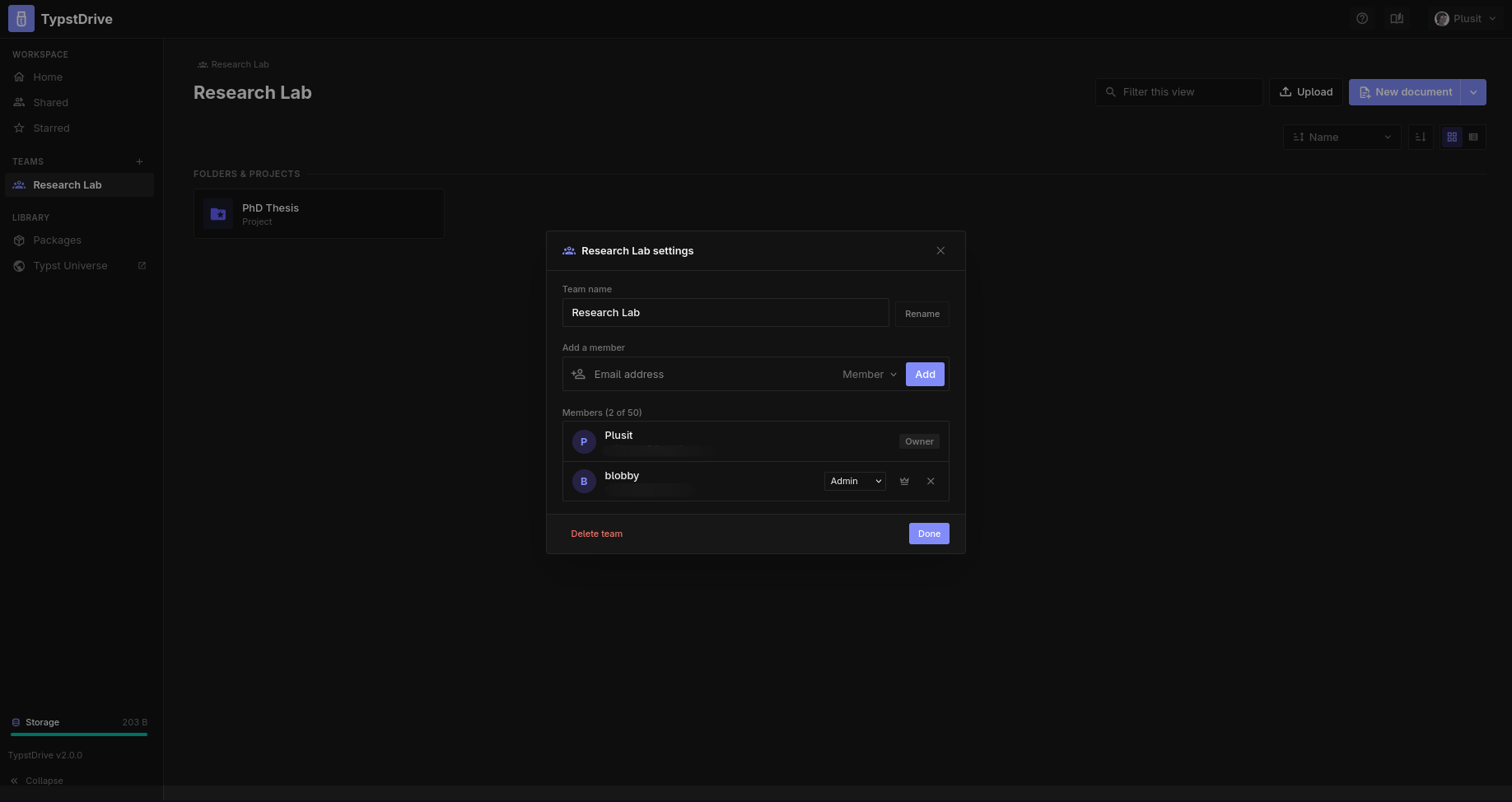
Hover over the team in the sidebar and choose the gear button.
- Invite someone by the email of their TypstDrive account and choose a role. If email is set up, they get a message with a link.
- Change someone's role or remove them.
- Leave a team. The owner has to hand the team to someone else first.
- Make owner hands the team to another member. You stay on as an admin.
- Delete the team and everything in its drive.
If the owner's account is deleted, the team passes to an admin, then a member, then a viewer.