Your drive
The drive is the first thing you see after signing in. It holds everything you own: folders, documents, projects and uploaded files.
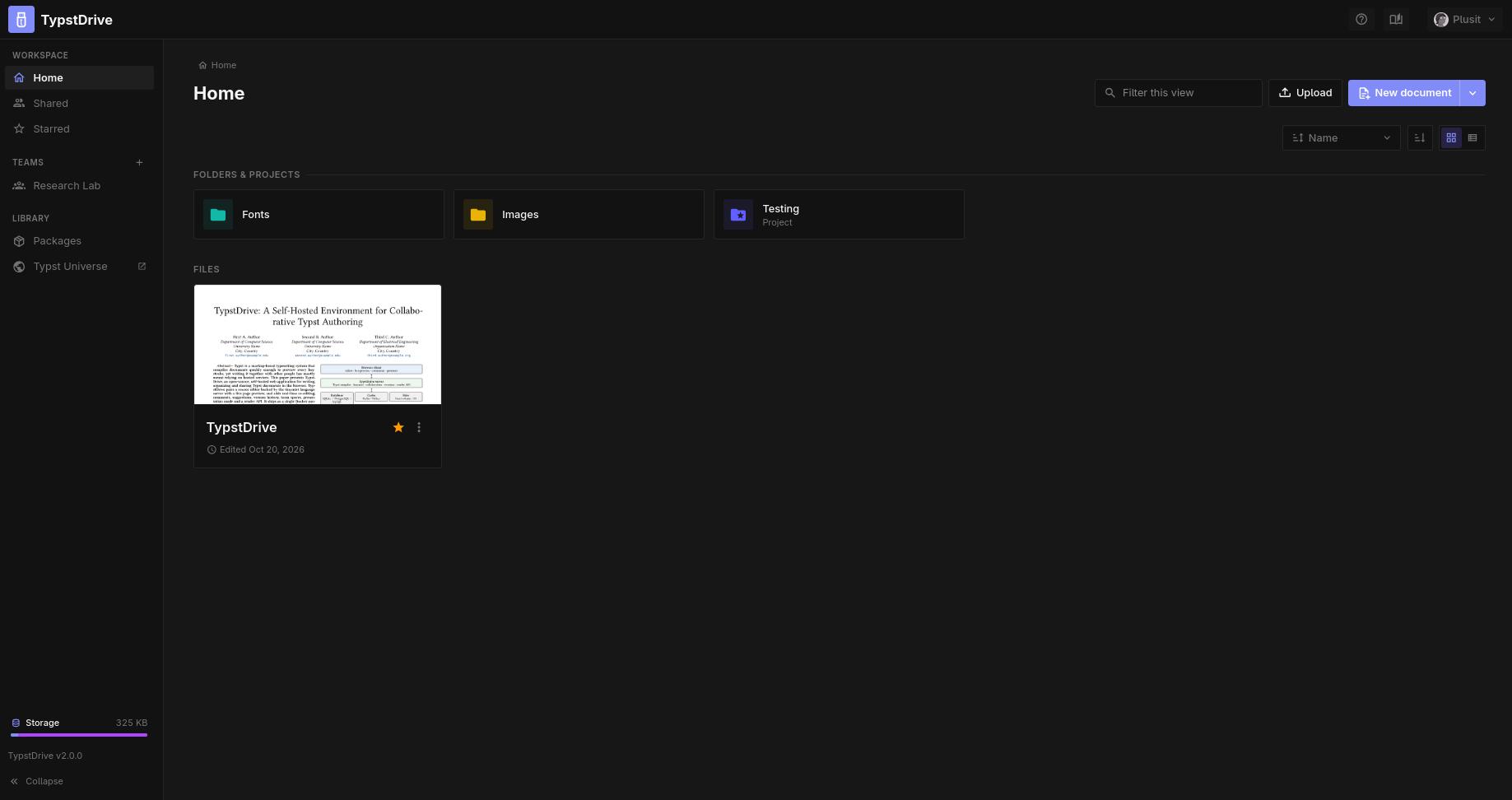
Finding your way around
- Sidebar on the left: Home (your own files), Shared (things other people shared with you), Starred, your team spaces, Packages, and a link to Typst Universe. At the bottom you can see how much storage you use and which version of TypstDrive is running. Collapse the sidebar with the button at the bottom.
- Header at the top: where you are, a search box, Upload, and New document. The arrow next to New document also creates a project, a folder, or imports a file.
- Toolbar: sort by name, date or size, flip the order, and switch between a grid of cards and a compact list.
TypstDrive remembers your view, sort order and sidebar choice in your browser.
Folders
Folders hold documents, projects, files and other folders.
- Move something by dragging it onto a folder, or onto a folder name in the path at the top.
- Color a folder with the palette button on it. The color also shows in Typst Desktop.
- Delete a folder to delete everything inside it. You are asked to confirm first.
- Share a folder to give someone access to everything inside it. See Sharing.
Documents and projects
A document is a single Typst file. A project holds many files, which is handy for longer work. Projects show a star-shaped folder icon. See Projects.
Documents show a small picture of their first page so you can recognize them at a glance.
Uploaded files
Images, fonts, PDFs and other files you upload appear alongside your documents.
- Images and PDFs open in a viewer. Use the arrow keys to move between files and + or - to zoom.
- Fonts are used automatically by every document. See Fonts and images.
- Rename and Delete are on each file. Documents refer to files by name, so renaming a file means updating the documents that use it.
- Replace uploads a new version of a file but keeps its name, so every document that uses it picks up the change.
Stars
Click the star on any document or project to add it to Starred in the sidebar. Stars are personal: nobody else sees them.
Details about an item
Info on any item shows who owns it, how big it is, where it lives, when it was created and changed, who edited it last, and everyone who has access.
Shared with me
Shared lists everything other people have shared with you, along with what you are allowed to do. If someone wants to hand you ownership of something, the request shows at the top of your drive with Accept and Decline buttons.
Downloading
Download a folder or project as a ZIP file from its download button.
- Folders keep their structure. Documents become
.typfiles named after their titles. - Projects inside a folder get their own folder in the ZIP.
- If two files would have the same name, a number is added, such as
notes (2).typ.
Importing
Choose New → Import to turn a Word (.docx), LaTeX (.tex), Markdown (.md) or web page (.html) file into a Typst document. The result usually needs a little tidying, but saves a lot of retyping.